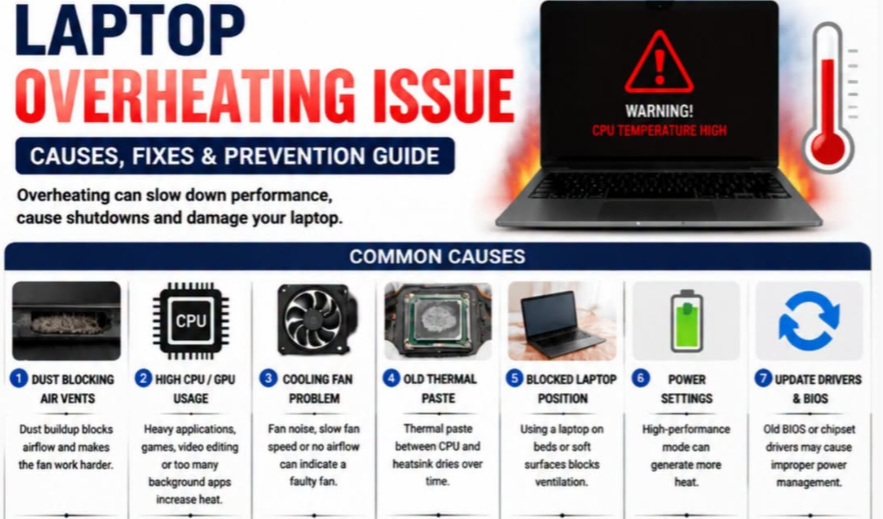
Discover common MacBook overheating causes, practical solutions and prevention tips to improve laptop performance and maintain safe temperatures.
MacBook Overheating: Common Causes, Effective Solutions and Tips to Keep Your Mac Running Cool
By News National Editorial Team
MacBooks are known for their performance, reliability and premium design. However, even Apple's laptops can experience overheating during everyday use. A MacBook that becomes unusually hot, produces excessive fan noise or slows down unexpectedly may be experiencing increased system activity, ventilation problems or a hardware-related issue.
MacBook overheating can affect performance, battery efficiency and the overall user experience. Understanding the reasons behind excessive heat can help users identify potential problems and take appropriate steps before the situation becomes more serious.
This guide explains the common causes of MacBook overheating, practical troubleshooting methods and preventive measures for maintaining a healthy laptop.
Why Does a MacBook Overheat?
A MacBook generates heat when its processor, graphics hardware and other internal components perform demanding tasks. Some heat is normal, particularly during intensive workloads.
However, persistent or unusual heating may indicate an underlying issue.
Several common factors can contribute to excessive temperatures.
1. Heavy Applications and High CPU Usage
Resource-intensive applications can increase processor activity and generate additional heat.
Video editing software, graphic design applications, demanding games and large development projects can place significant workloads on a MacBook.
Running multiple applications simultaneously may also increase resource consumption.
2. Too Many Browser Tabs
Modern browsers can consume considerable memory and processing power, especially when numerous tabs and extensions remain active.
Web-based applications, video streaming platforms and complex websites may contribute to increased CPU usage.
Closing unnecessary tabs and browser windows can help reduce the workload.
3. Poor Ventilation and Blocked Airflow
Ventilation plays an important role in laptop temperature management.
Using a MacBook on a bed, pillow, blanket or soft surface can restrict airflow around its ventilation openings.
A hard, flat surface, such as a desk, generally provides better ventilation.
4. Background Applications and Processes
Some applications continue operating in the background even when they are not actively being used.
Cloud synchronisation, software updates, file indexing and other background processes can temporarily increase processor activity.
Identifying unnecessary processes can help users understand why their MacBook is becoming unusually warm.
5. High Environmental Temperature
The surrounding environment also affects laptop cooling.
Apple recommends using Mac laptops in ambient temperatures between 10°C and 35°C.
Direct sunlight, poorly ventilated rooms and excessive environmental heat can make temperature management more difficult.
How to Fix MacBook Overheating
The following troubleshooting methods can help users identify and address common causes of excessive heat.
1. Check Activity Monitor
Activity Monitor provides information about applications and processes using system resources.
Users can:
If an application is consuming excessive resources unexpectedly, users can close it or investigate whether an update is available.
System processes should not be terminated without understanding their purpose.
2. Close Unnecessary Applications
Keeping several demanding applications open simultaneously can increase system workload.
Closing applications that are not required may help reduce CPU and memory consumption.
Restarting the MacBook can also help resolve certain temporary software-related problems.
3. Improve Laptop Ventilation
MacBooks should be placed on stable, hard surfaces that allow adequate airflow.
Users should avoid:
-
Working with the laptop on a pillow or blanket.
-
Covering ventilation openings.
-
Blocking the keyboard with objects.
-
Leaving the laptop in direct sunlight.
-
Using the device inside enclosed spaces with poor airflow.
4. Install macOS Updates
Outdated software can sometimes contribute to performance problems.
Checking for available macOS updates helps ensure that the system receives Apple's software improvements, security updates and compatibility fixes.
Users can check available updates through System Settings and Software Update.
5. Check the Battery and Charging Equipment
Unusual heat during charging should not automatically be attributed to a defective battery.
Users should inspect the charging cable and adapter for visible damage and use Apple-authorised power adapters.
If the battery appears swollen, the laptop's casing becomes distorted or there is an unusual smell, charging and using the device should stop until it has been professionally inspected.
Does MacBook Overheating Affect Performance?
Excessive heat can cause a computer to reduce performance to manage its operating temperature.
This process is commonly known as thermal throttling.
Users may notice:
-
Slower application performance.
-
Delays when opening software.
-
Reduced responsiveness.
-
Increased fan activity on models equipped with fans.
-
Interruptions during demanding workloads.
MacBooks include temperature-monitoring mechanisms designed to protect internal components.
However, persistent overheating should not be ignored.
When Should MacBook Users Contact Apple Support?
Basic troubleshooting may resolve temporary heating problems. However, professional assistance may be necessary when:
-
The laptop becomes unusually hot during light usage.
-
Fans operate continuously without an apparent workload.
-
The device repeatedly shuts down unexpectedly.
-
Battery swelling or physical damage is visible.
-
Performance problems continue after software troubleshooting.
-
Hardware or temperature-related warnings appear.
Apple Diagnostics may help identify certain hardware problems. Users can also contact Apple Support or visit an Apple Authorised Service Provider for further inspection.
How to Prevent MacBook Overheating
A few regular maintenance practices can help reduce unnecessary heat generation.
-
Keep macOS and applications updated.
-
Avoid running unnecessary resource-intensive applications.
-
Maintain adequate ventilation around the laptop.
-
Use the device on a hard, flat surface.
-
Keep the laptop away from direct sunlight.
-
Use compatible, authorised charging equipment.
-
Monitor unexpected CPU activity.
-
Seek professional assistance when unusual heating continues.
Final Thoughts
MacBook overheating does not always indicate a serious hardware failure. Intensive applications, background processes, restricted airflow and high environmental temperatures can all contribute to increased heat.
Understanding these factors allows users to take practical steps to improve laptop performance and maintain suitable operating conditions.
However, persistent overheating, unexpected shutdowns and battery-related warning signs require professional attention.
With appropriate software maintenance, good ventilation and responsible usage, MacBook users can reduce unnecessary heat and support the long-term reliability of their devices.
Editorial Disclaimer: This article is intended for general informational and troubleshooting purposes. It does not replace professional hardware inspection or official Apple technical support. Troubleshooting procedures may vary depending on the MacBook model and processor generation.